
Video Recording
Record your screen. Share your process.
A drawing coming together, a useful setting or a step-by-step walkthrough. Capture what happens on your screen and turn it into a tutorial, short or reel in the same workspace.
Try it in ShortsJet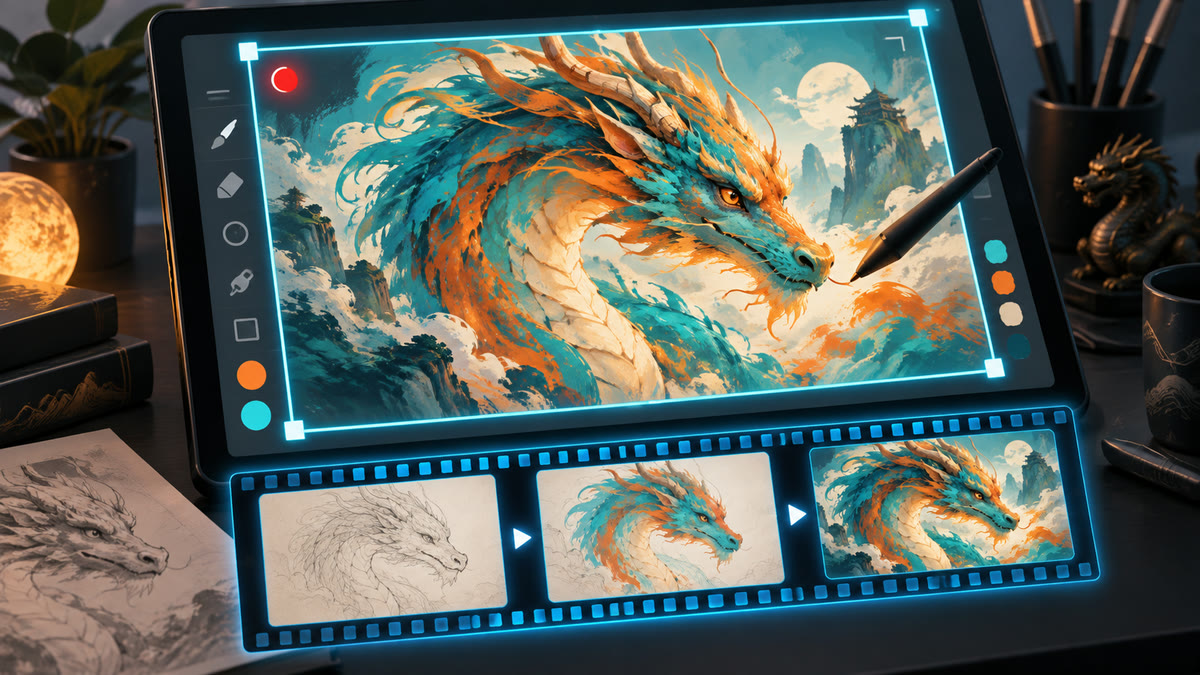
- Choose a screen area
- 30 fps MP4 recording
- Direct import into Media
Frame the part viewers need to see
Open the capture frame using the camera button beside Import media, then select MP4. Move and resize the frame around your subject, or enter an exact position and size. Choose a display and use a short delay when you need time to prepare the action.
Press Record to start and Stop when the demonstration is finished. The recording appears in Media, ready to drag onto your timeline. The capture frame stays outside the recorded picture.
Turn the recording into a clear explanation
Trim waiting time, split the steps and draw attention with titles or animated arrows. Screen recordings capture the picture without sound. Record a voiceover afterwards, add music or create narration with Text to Speech to guide viewers through the result.
Recordings are saved as H.264 MP4 files at 30 frames per second. Saved projects keep them in a Recordings folder beside the project file. Include that folder when moving the project to another computer.
A CLOSER LOOK
Good to know.
Does screen recording include microphone or system audio?
The screen recorder captures silent video. Add a separate microphone voiceover, generated narration or music in your edit.
Can I include the mouse pointer?
The Cursor option includes the pointer on Windows and Linux X11. Availability depends on the capture support provided by your desktop environment.
Can I still take a screenshot?
Yes. Choose Image in the same capture frame for a still screenshot, or MP4 for a video.
Try it with your next video.
ShortsJet for Windows, Ubuntu Linux and macOS. Free for 30 days.